Select different option instead of SMS for Multi-Factor Authentication

If you use SMS passcodes when signing in to university resources with Duo, you will need to select a different option.  

SMS passcodes are the least secure option when using Multi-Factor Authentication and the university is removing the SMS (text) option for the Illinois campus beginning July 14 to help better protect university resources from cyber criminals. MFA also helps protect personal information, such as access to direct deposit. 

Jump to a tutorial video.

What you need to do: 

Determine whether you will use the Duo mobile app on a tablet or smartphone or use a token (key) that you plug in to your PC or laptop.

  • If you select the Duo app option, download it and install it on your smartphone or tablet.
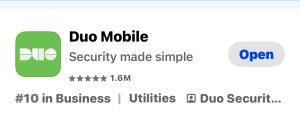
What is looks like to choose the Duo Mobile app in your app store.
  • If you select the token, you can obtain one from the WebStoreActive faculty and staff should first reach out to their college or unit IT support staff to determine whether their department has specific instructions for acquiring a token. 

Once you have the token in hand or have the app installed you can change your second factor as registered in the NetID Center to your new option.  

  1. Visit the NetID Center and select manage my 2FA. 
  2. Follow the instructions in this Answers KnowledgeBase article to make a new selection.  

Video instruction

FAQ

This FAQ answers more questions about discontinuing SMS passcodes.

MFA Fatigue

When you don’t really notice notices, you risk letting scammers in.

Many of us enable notifications on our smartphones so we know when new information arrives. It can be great to stay on top of the latest news or your friends’ upcoming activities.

Enhanced security protocols such as multi-factor authentication (MFA) for your bank account or for university resources use the same push notification tools. Notifications can be set up on your device to quickly tap and be allowed in.

When you become overwhelmed by all the noise, you are at risk of missing out on clues that tell you a request is from a scammer hoping to steal your credentials.

As explained by Isaac Galvan, Lead Cybersecurity Training Specialist in Technology Services, MFA fatigue is when a cybercriminal floods you with approval prompts in the middle of the night or randomly throughout the day. “The cyber-criminal hopes to fatigue you with endless notifications so you get tired of them and, in frustration, approve one,” he said.

Keep the following in mind to help avoid these MFA scams.

Timing is everything.

When a notice appears, does it coincide with when you are visiting a website or using an application? Manager of Identity and Access Jeremy Watson explained that you should not click or swipe unless you are actively using an application. “If you are awoken at 3:30 a.m. because of repeated texts or notifications, be concerned. You are NOT trying to login to your account while fast asleep, so do not click,” he said.

Only approve Duo prompts you initiated by logging in with your password and keep generated passcodes secret from everyone.

We won’t call you to approve anything.

When a cybercriminal has an account’s password, they also need to get past the MFA protection. Cyber-criminals can try to catch you off guard by impersonating a university official or IT staff member. Galvan added that a help desk or IT staff member “will never ask you to approve an MFA prompt or generate a passcode,” Galvan explained. 

He recommends you change your password if you get suspicious Duo prompts that you didn’t initiate or receive phone calls asking you about multifactor authentication. This is a sign that someone else may have your password.   

You can get notified of unapproved access.

Watson suggested you check your MFA settings for old or unrecognized devices and phone numbers. While you’re there you can set up a default approval device, so you get prompted when your password has been used to log in. You can change your password and update your MFA settings in the NetID Center at https://identity.uillinois.edu.  

Privacy & Cybersecurity
Digital Computer Lab
1304 W. Springfield Ave.
Urbana, IL 61801
Email: securitysupport@illinois.edu
Log In